Trying Linux Without Risk: Ubuntu in a Virtual Machine
Learn how to try Linux safely on your Windows PC using a virtual machine. This guide walks you step-by-step through enabling virtualization, downloading VMware Workstation Player and Ubuntu, creating a virtual machine, and installing Ubuntu. No spare hardware or risky setups required, get hands-on with Linux in a safe, isolated environment.
1/27/20263 min read
Many people want to try Linux... but stop when they hear words like dual-boot, partitions, or bare-metal installs. That sounds risky, especially if you rely on only one computer. The good news is you don’t need a spare machine or a complicated setup to get started. You can run Linux inside your current computer using a virtual machine. A virtual machine is a computer inside your computer. It runs its own operating system in a window, separate from Windows. If something breaks, nothing happens to your main system. You can close it, delete it, and start over whenever you want. This makes it one of the safest ways to learn Linux. For this walkthrough, we’ll use VMware Workstation Player and Ubuntu. VMware runs the virtual machine, and we'll install Ubuntu as the Linux operating system inside it. Both are free.
Before downloading anything, make sure your PC can run a virtual machine. Most modern computers can, but it only works if virtualization is turned on. Without it, VMware won’t run Ubuntu properly. Virtualization is often called Intel VT-x, Intel Virtualization Technology, or AMD-V. On most systems, it’s enabled by default, but some require you to turn it on manually. You can access your BIOS or UEFI by pressing a key like F2, Delete, or Esc when your computer starts. Look for virtualization settings and ensure they are enabled; then save and reboot. This step is critical if virtualization isn’t enabled; nothing else will work.
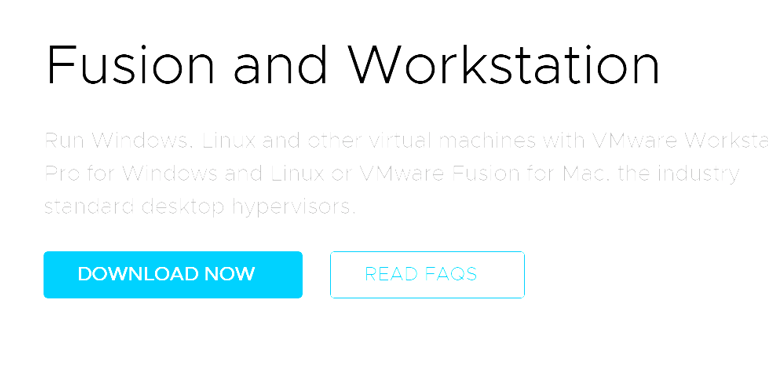
Once virtualization is confirmed, open your browser and go to the VMware website at https://www.vmware.com/products/workstation-player.html. Download VMware Workstation Player for Windows, selecting the free personal-use option. You may be asked to create or sign up for a VMware account, but there is no cost involved. After the download finishes, open the installer and follow the prompts, keeping the default settings. Restart your computer if prompted, and VMware will be ready to use.
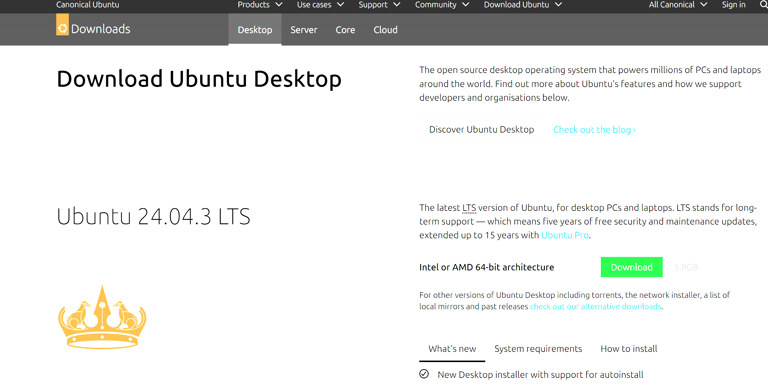
Next, go to the Ubuntu website at https://ubuntu.com/download/desktop and download Ubuntu Desktop LTS (Long-Term Support). This is the most stable version and the best choice for new users. The download will be a single ISO file, essentially a virtual installation disk. You don’t need to open or extract it; just remember where it downloaded, such as your Downloads folder.
With VMware and Ubuntu ready, open VMware Workstation Player and select “Create a New Virtual Machine.” Choose to install from an ISO file and select the Ubuntu ISO you downloaded. VMware should automatically recognize it as Ubuntu. Set the operating system type to Linux and the version to Ubuntu (64-bit) if it isn’t already selected. Give the virtual machine a name for yourself and leave the default location for saving it. Set the disk size to 30–50GB. This is the maximum space the virtual machine can use and does not immediately consume your hard drive. Before finishing, customize the hardware by assigning 4GB of RAM if your system has at least 8GB and 2 CPU cores, which is plenty for learning and general use. Click Finish when everything looks correct.
Click “Play Virtual Machine” to start it. The Ubuntu installer will be launched automatically. Follow the prompts to select your language, keyboard layout, and time zone. Create a username and password and accept the default installation options. Wait a few minutes while Ubuntu installs. When it finishes, the virtual machine will reboot and take you to the Ubuntu desktop.
At this point, you are running a full Linux operating system inside a window on your Windows computer. You can open the terminal, browse the web, install software, and explore the system just as if it were a real computer. Nothing you do inside the virtual machine affects your main system. You can experiment freely, break things, fix them, or delete the virtual machine and start over. This setup is sufficient for learning Linux basics, practicing command-line skills, testing software, or building small lab environments. Many people use virtual machines for years before ever installing Linux on real hardware. If you eventually want better performance or a dedicated Linux system, you can later move to a bare-metal install. For beginners, this is one of the easiest and safest ways to start using Linux.